Apple Pay has become one of the easiest ways to pay in stores, apps, and online without carrying a physical wallet. Many users now rely on virtual cards for privacy, speed, and better control. A common question people ask is how do I add a card to Apple Pay, especially when using a virtual card instead of a physical one.
The good news is that Apple Pay supports many virtual debit and credit cards. The process is simple if your card issuer allows Apple Pay integration. In this guide, you will learn how to add a card to Apple Pay, what you need before starting, and why some cards may not work.
What You Need Before Adding a Card to Apple Pay
Before starting the setup, make sure a few basic things are ready. Apple Pay works only when the card issuer supports Apple Pay tokenization. This applies to both physical and virtual cards.
You need an iPhone with Face ID or Touch ID, an Apple ID signed in to iCloud, and the Wallet app enabled. Your iPhone region and Apple ID region must support Apple Pay. Some countries have limited support, so this part matters.
Your card must also be active and capable of online payments. Single use or disposable virtual cards usually cannot be added because Apple Pay requires a reusable card profile.
How Do I Add a Card to Apple Pay Using iPhone Wallet?
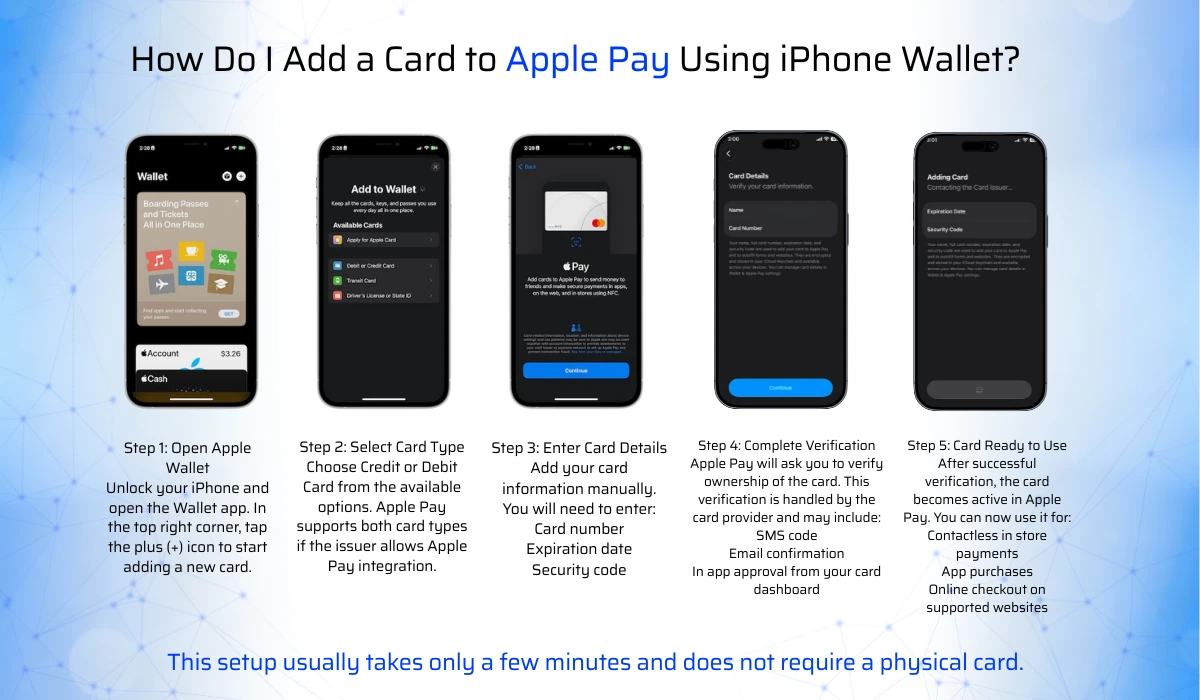
This method works for most supported physical and virtual cards. Follow the steps below to add your card quickly and safely.
Step 1: Open Apple Wallet
Unlock your iPhone and open the Wallet app. In the top right corner, tap the plus (+) icon to start adding a new card.
Step 2: Select Card Type
Choose Credit or Debit Card from the available options. Apple Pay supports both card types if the issuer allows Apple Pay integration.
Step 3: Enter Card Details
Add your card information manually. You will need to enter:
- Card number
- Expiration date
- Security code
Some issuers allow scanning, but virtual cards are usually added by typing the details.
Step 4: Complete Verification
Apple Pay will ask you to verify ownership of the card. This verification is handled by the card provider and may include:
- SMS code
- Email confirmation
- In app approval from your card dashboard
Step 5: Card Ready to Use
After successful verification, the card becomes active in Apple Pay. You can now use it for:
- Contactless in store payments
- App purchases
- Online checkout on supported websites
This setup usually takes only a few minutes and does not require a physical card.
Adding a Card Directly From the Card Provider App
Some card issuers offer a faster way to add cards to Apple Pay. Inside their app, you may see an option that says Add to Apple Wallet or Add to Apple Pay.
When you tap this option, Apple Pay opens automatically and completes most steps for you. You still need to confirm identity and accept Apple Pay terms, but the process is smoother. This option depends entirely on the card provider. If you do not see this feature, use the Wallet app method instead.
Why Your Card Might Not Add to Apple Pay
If Apple Pay rejects your card, it does not always mean something is wrong with your phone. The most common reason is issuer support.
- Some virtual cards are designed only for online payments and do not support Apple Pay tokenization. Apple Pay creates a secure device based token, and not all card systems allow this.
- Another common reason is region limitation. Even if Apple Pay works on your phone, your card issuer may not support Apple Pay in your country.
- In some cases, verification fails because SMS delivery is blocked or the email linked to the card is not accessible. Checking your card dashboard usually solves this.
Is Apple Pay Safe for Virtual Cards?
Apple Pay is one of the safest payment methods available today. When you add a card, Apple does not store your real card number on the device or share it with merchants.
Instead, Apple Pay uses a unique device based token. Every transaction requires Face ID, Touch ID, or passcode authentication. This adds another layer of security compared to using card details directly online.
For users who value privacy, combining Apple Pay with a virtual card offers strong protection against fraud and unauthorized charges.
Using Virtual Cards With Apple Pay From CardUpNow
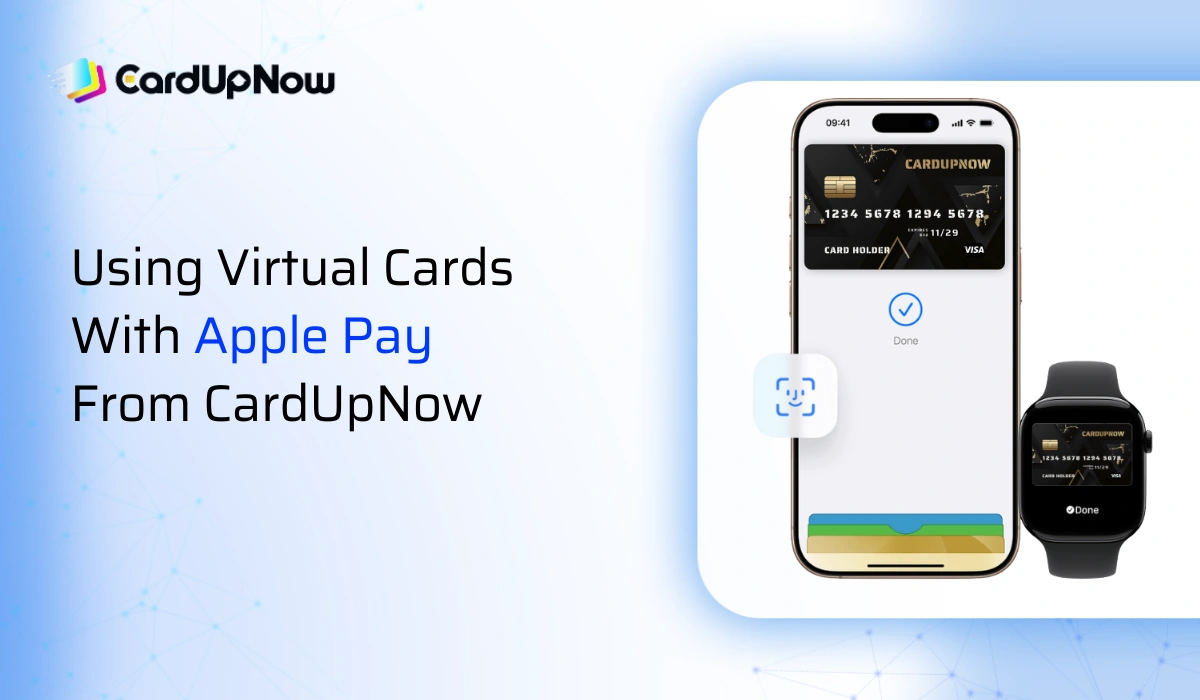
CardUpNow focuses on flexible virtual card solutions designed for online and digital payments. Many users choose virtual cards to control spending, reduce exposure, and manage subscriptions easily.
If a CardUpNow virtual card supports Apple Pay, it can be added using the same steps explained above. You enter the card details in Apple Wallet, complete verification, and start using it instantly for contactless payments.
This setup is useful for app purchases, subscriptions, and in store payments where Apple Pay is accepted
Final Thoughts
If you were asking how do I add a card to Apple Pay, the answer is simple when your card supports it. Open the Wallet app, add your card details, verify ownership, and you are ready to pay. Virtual cards work very well with Apple Pay when issued by a compatible provider.
The combination offers speed, security, and convenience without relying on a physical card.
Before adding any card, always confirm Apple Pay support from your card issuer. Once added, Apple Pay becomes one of the easiest ways to manage daily payments directly from your phone.
FAQ
Still wondering, “How do I add a card to Apple Pay?” We’ve answered that and other common setup questions below to help you troubleshoot issues and get your digital wallet ready for use in seconds.
Can I add a virtual card to Apple Pay?
Yes, many virtual cards can be added to Apple Pay if the card issuer supports Apple Pay tokenization. The process is the same as adding a physical card through the Wallet app. You enter the card details, complete verification, and the card becomes available for contactless payments. Single use or disposable virtual cards usually do not work because Apple Pay requires a reusable card profile.
Why does Apple Pay say my card is not supported?
This message usually appears when the card issuer does not support Apple Pay. Even if Apple Pay is available on your iPhone, the card provider must allow Apple Pay integration. Region restrictions can also cause this issue if the card is issued in a country where Apple Pay support is limited. Checking with the card provider is the best way to confirm compatibility.
Is it safe to add my card to Apple Pay?
Adding a card to Apple Pay is very safe. Apple does not store your real card number on your device or share it with merchants. Instead, Apple Pay uses a secure device specific token and requires Face ID, Touch ID, or a passcode for every transaction. This makes Apple Pay more secure than entering card details manually on websites.